In Windows 10, it is possible to add the Hibernate option to the
power button menu inside the Start menu. Using that command, you can
easily use hibernation instead of the shutdown command and your PC will
still be powered off. The hibernation mode in Windows is very useful and
time-saving as you don't have to close your open documents and apps
before powering off the system. You can resume your work the next time
exactly where you stopped. Here is how to add the Hibernate command to
Start Menu in Windows 10.
If your Start menu in Windows 10 does not contain the Hibernate option, you need to do the following:
Open Control Panel
Go to the following item:
Hardware and Sound\Power Options
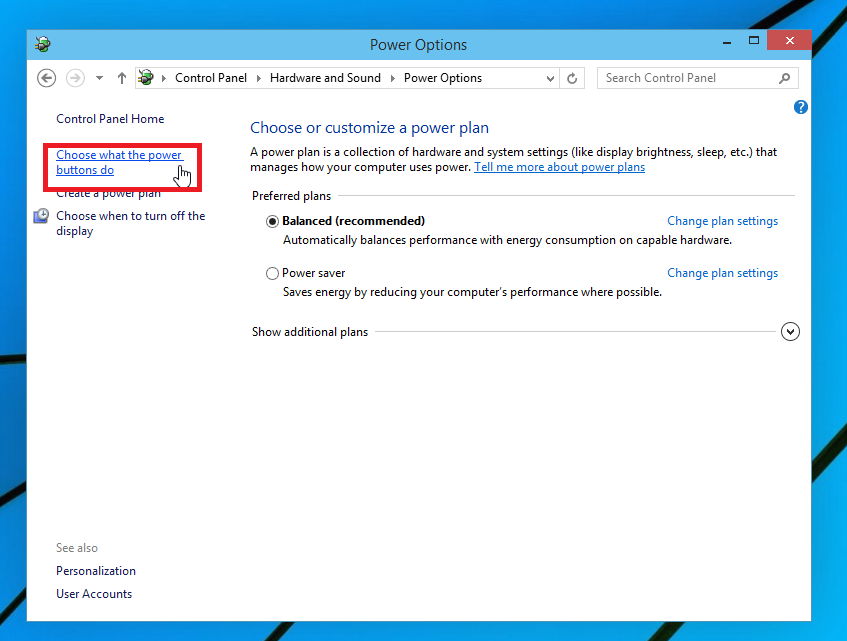
On the left, click "Choose what the power buttons do":
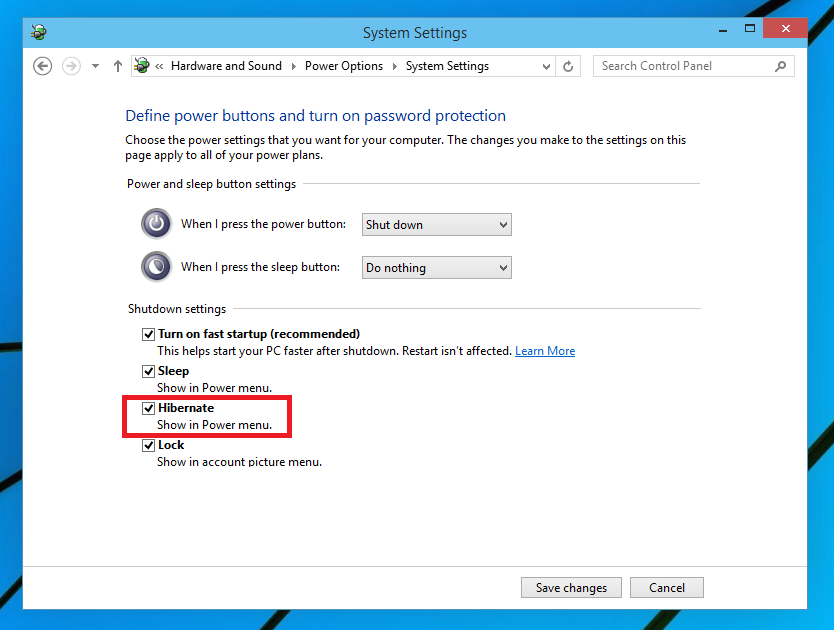
Click the Change Settings that are currently unavailable link. The Shutdown options will become editable. Check the option there called Hibernate (Show in Power menu).
You are done.
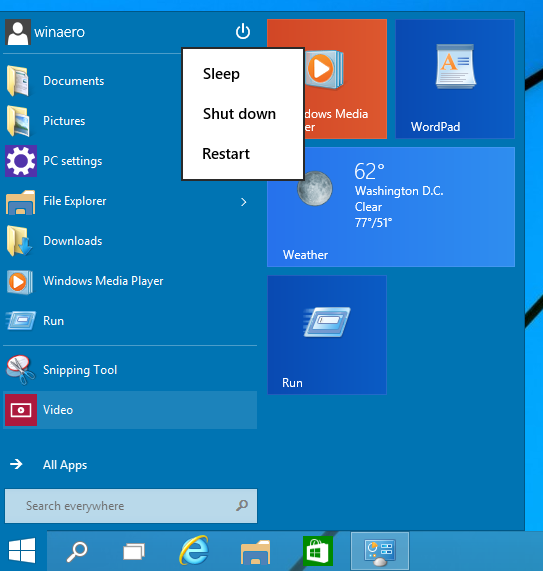
Before:
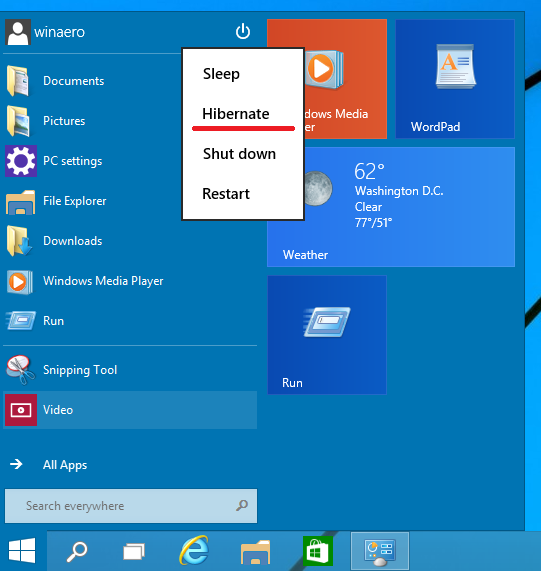
After:
To hide the Hibernate option from the Shutdown menu of the Start Menu on Windows 10, just untick that checkbox.
ថ្ងៃនេះខ្ញុំបាទសូមបង្ហាញអីរបៀប Install KhmerMusic and Add Mp3 and Video to KhmerMusic
គឺជាកម្មវិធីមួយដែលមានភាពងាយសម្រាប់ការប្រើប្រាស់ទោះអ្នកមិនចេះប្រើក៏អាចប្រើបានដែរ ។
សូមមើលវិដេអូខាងក្រោមៈ
How to install KhmerMusic Fullversion
IntroductionSometimes there is a need to convert your video containing subtitles. Subtitles are the textual representation of a dialog displayed at the bottom of the screen. They can be a written translation of the dialog in a foreign language or its transcription in the same language. That is really very helpful in case you cannot hear properly what is being said.
Using AVS Video Converter you can convert, for instance, .avi files with subtitles located in separate files - .ssaor .srt into other video files with subtitles.
Note: in case you convert an .avi video file with a .ssa or .srt subtitle file please make sure that both files have the same name (e.g. My video.avi and My video.srt or My video.avi and My video.ssa) so that the program could load the subtitle file correctly.
Step 1: Download and install AVS Video ConverterClick here to download it. After the download is finished, run the AVSVideoConverter.exe file and follow the installation wizard instructions.
[Back to the Top]
Step 2: Run AVS Video Converter and select your input video fileTo select a video you would like to convert hit the Browse... button next to the Input File Name field. In the opened Windows Explorer window browse for the necessary video file:
Note: when your input is a DVD disc, you will need to select the path to your source file: X:\Video_TS\Video_TS.IFO. "X" stands for your DVD-ROM or the hard disk drive folder where your DVD is stored. Please see the online help section to find more on how to convert your home DVDs to other video formats.
Step 3: Select subtitlesAfter the file is loaded click the Advanced >> button to open the file additional parameters:
The subtitles from the .ssa or .srt file will be shown in the Subpicture drop-down list of the Input File section. Click the down arrow and select the subtitle from the list:
In case your input is a DVD it might contain more than one subtitle set. You will have to select the one you need from the drop-down list:
Step 4: Set up a proper video output file pathClick the Browse... button next to the Output File Name field and select a location on your HDD for the output video file.
Note: when you select a location for your output video file, you should save the file to your personal computer HDD.
Step 5: Convert your video fileSelect the format for your output video file clicking one of the buttons on the Formats tab of the Main Toolbar or the More Formats Toolbar (click the More Formats button to open it), select a preset from the list of available ones and hit the Convert Now! button to start converting:
The conversion process will take some time depending on the input file length, conversion parameters and your computer configuration. When it is over the program will offer uploading the output video file to a mobile device of yours or burn it to a disc. Now your output video, converted into the format you need, will contain subtitles.
[Back to the Top]
Version: 9.1.4.574Size: 60.13 MBPlatforms: Windows 10, 8.1, 8, 7, XP, 2003, Vista (no Mac OS/Linux support)Download AVS Video Converter